Work with your cameras.
Request AI Vision software for a compatible existing camera or supported drone feed.
- Camera source and feed review
- Selected detection features
- Licence and integration scope
HELLOGEO AI VISION / CAMERA INTELLIGENCE
Turn camera observations into a clear review workflow. Configure detection for your existing feed, an independent site camera or a parked vehicle, then keep the source, event and operator decision together.
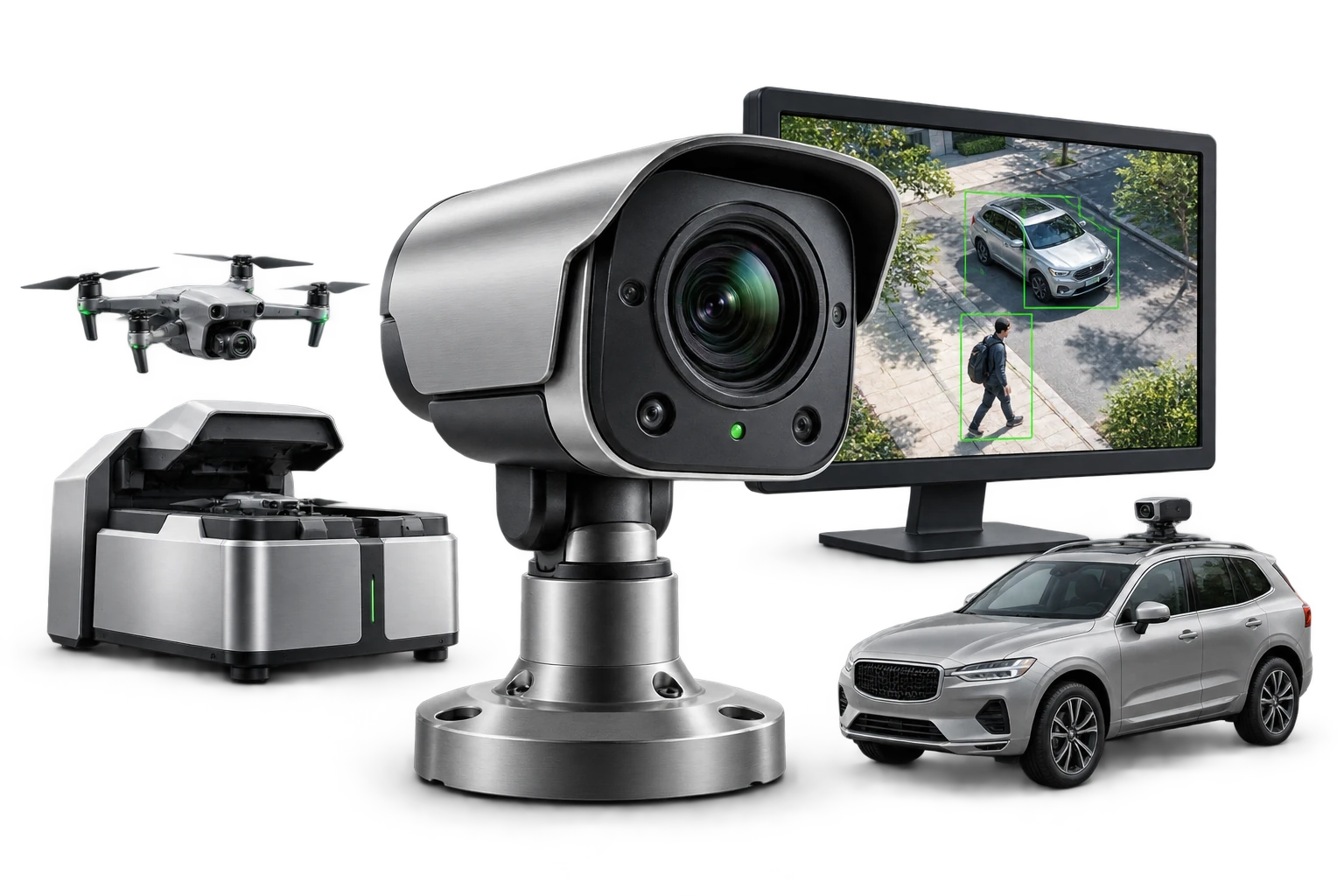
PLACE INTELLIGENCE WHERE IT MATTERS
Start with the camera you need. A vehicle is an optional deployment choice; AI Vision can also serve an independent site camera or a compatible existing feed.
Request AI Vision software for a compatible existing camera or supported drone feed.
Place a fixed or PTZ camera where the operation needs visibility, independently of a vehicle or ArtPole.
Plan a camera installation on a parked vehicle. Add Drone Station when the project also needs aerial collection.
EXPLORE THE ORIGINAL INTERFACE
Explore original HelloGeo product screens. The images are captured interface states; the Experience Zone lets you run a clearly labelled sample workflow.
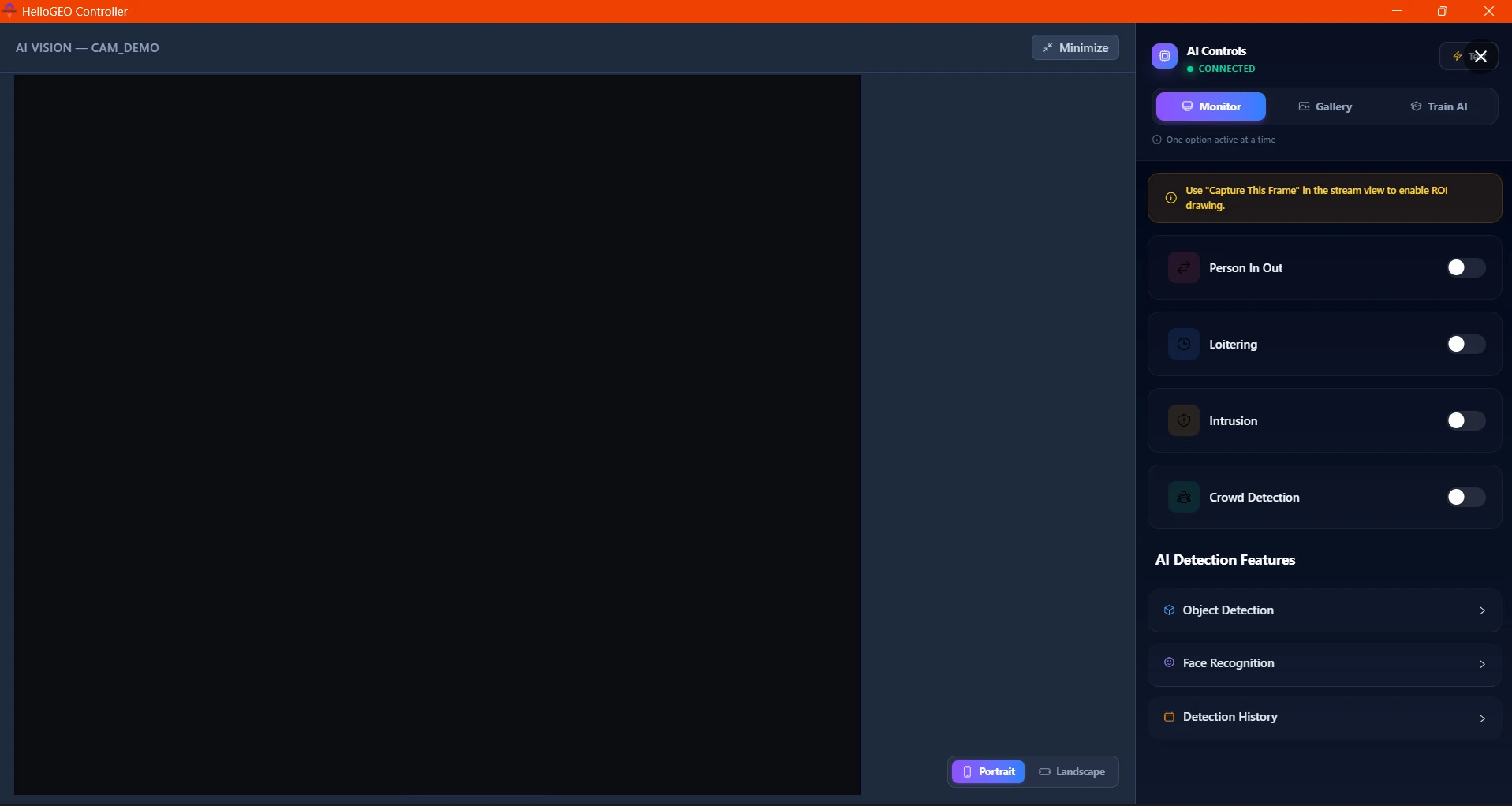
CAMERA WORKSPACE
Camera controls bring detection settings, feature galleries and event history into one review workflow.
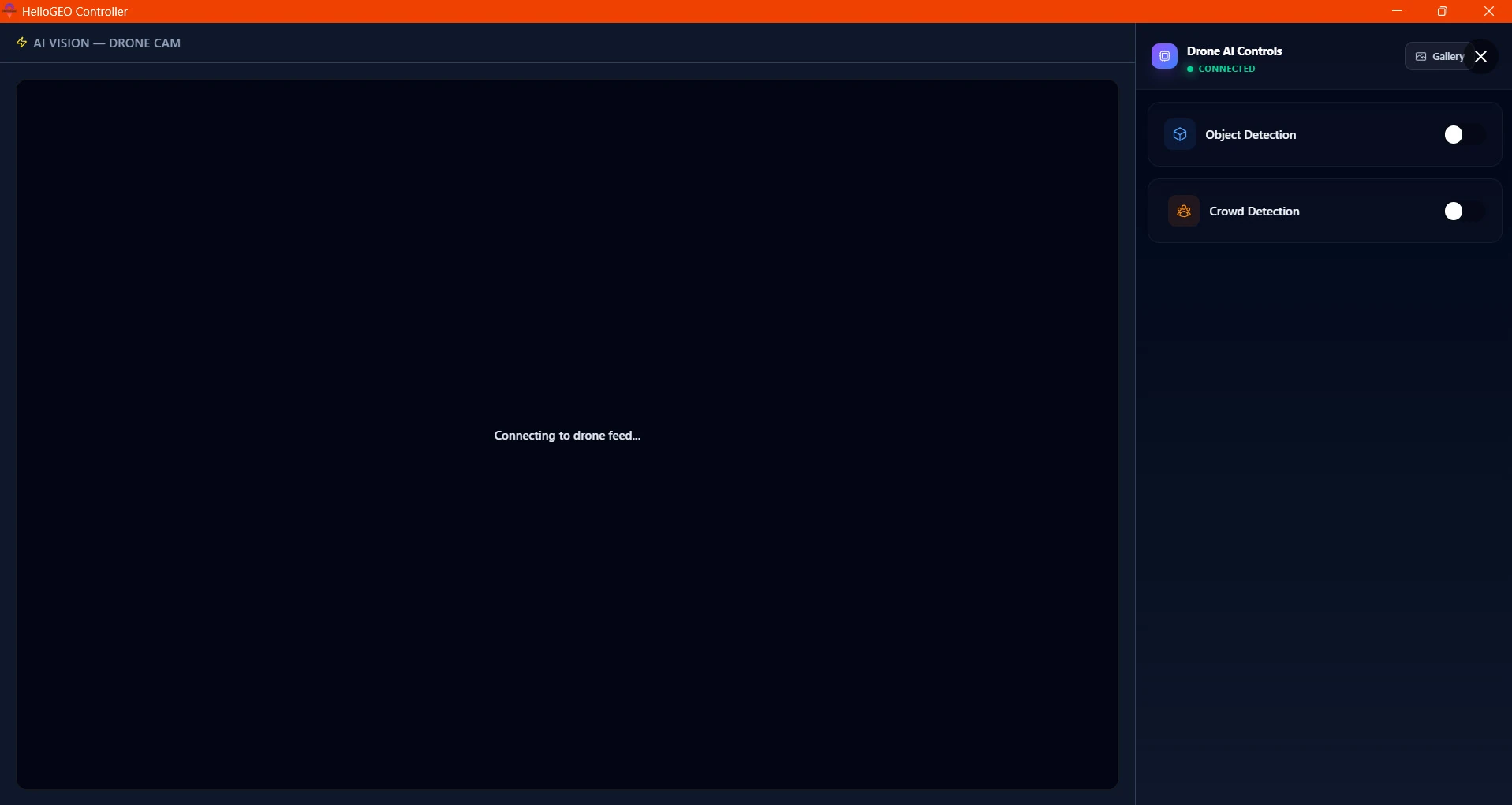
AERIAL OBSERVATION
The documented drone workflow offers Object and Crowd Detection for a supported aerial feed.
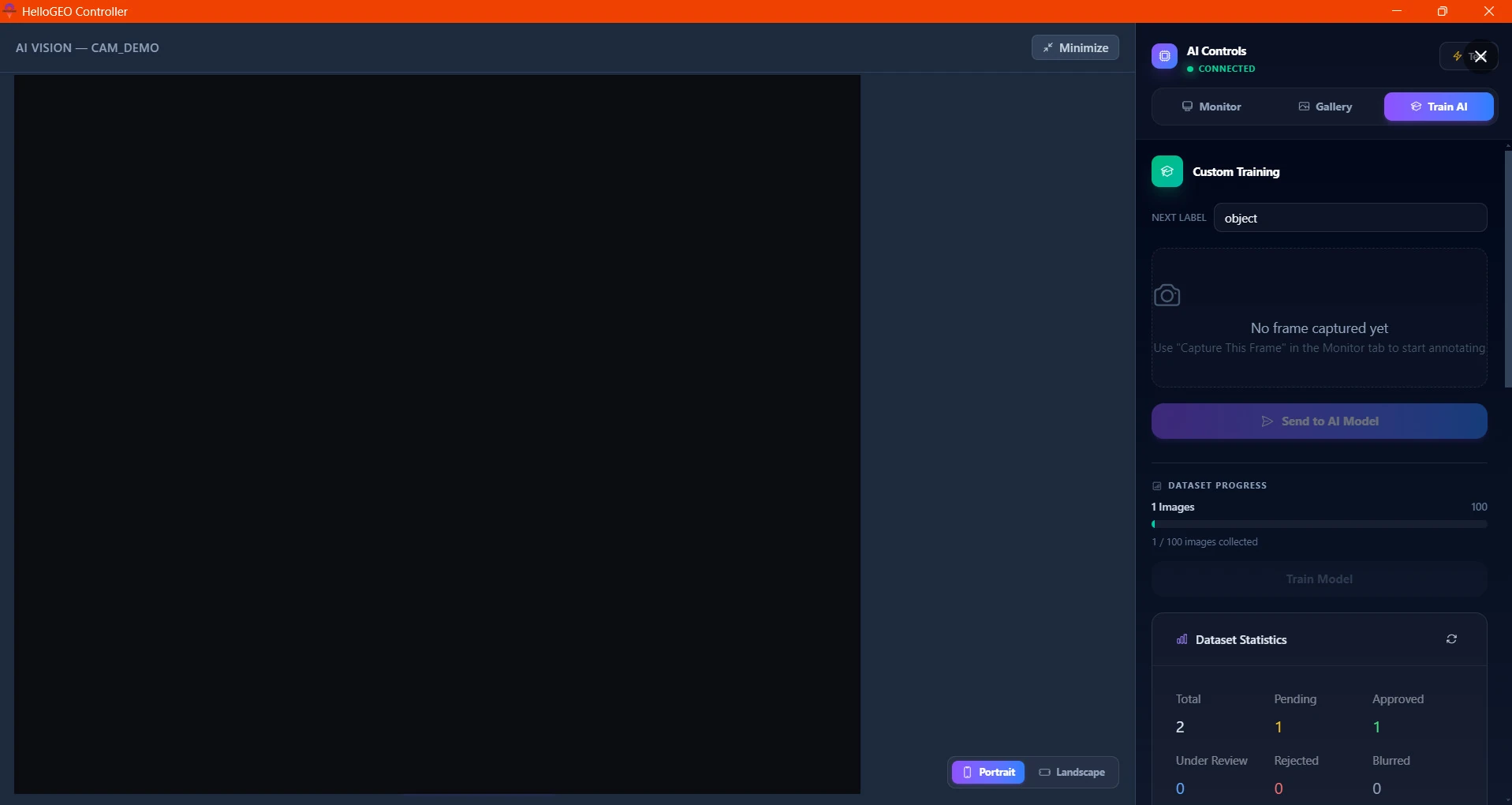
TRAIN AI WORKSPACE
Capture representative frames, label consistently and track dataset progress before training and validation.
DOCUMENTED DETECTION CAPABILITIES
Seven documented detection functions, scoped to the camera and scene. Drone-feed configurations cover Object and Crowd Detection; other functions require a qualified site-camera view.
Select the target class and alert settings. Review boxes, labels, counts and the scene.
Drone and PTZ workflowsSet a count threshold and optional zone. Review headcounts, snapshots and alert times.
Drone and PTZ workflowsConfigure a directional counting line and review separate entry and exit totals.
PTZ / validated site cameraDefine a restricted polygon or zone and review entry alerts with their evidence.
PTZ / validated site cameraSet a zone and dwell threshold to flag prolonged presence for operator review.
PTZ / validated site cameraReview a suspected fall event against the camera scene before taking action.
PTZ / scene validation requiredOptional watchlist matching with approved access, thresholds and trained human confirmation.
Optional · approved use and site policy requiredFeatures are quoted as a requested scope. The captured camera interface shows one active detection option at a time; concurrent features and capacity are confirmed for the deployment.
YOUR DEPLOYMENT / YOUR CONFIGURATION
Choose the package, camera, quantity and features. Your configuration carries through to the interactive Experience and the quotation enquiry.
YOUR VISION CONFIGURATION
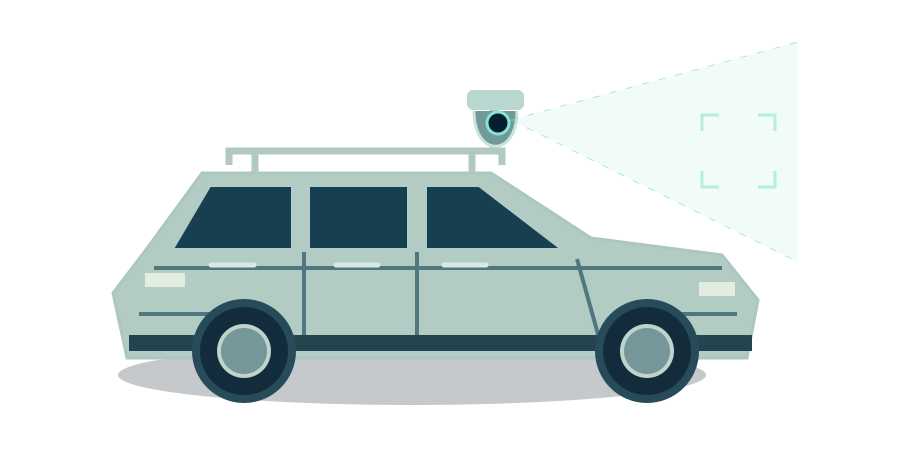
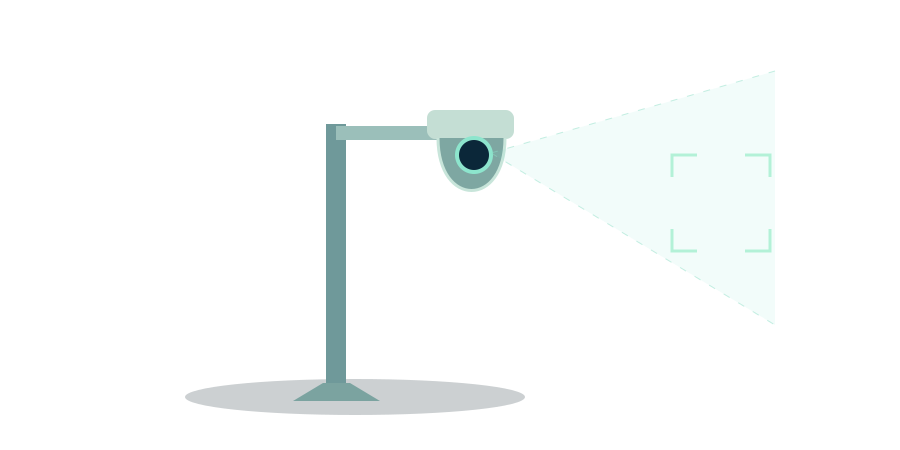
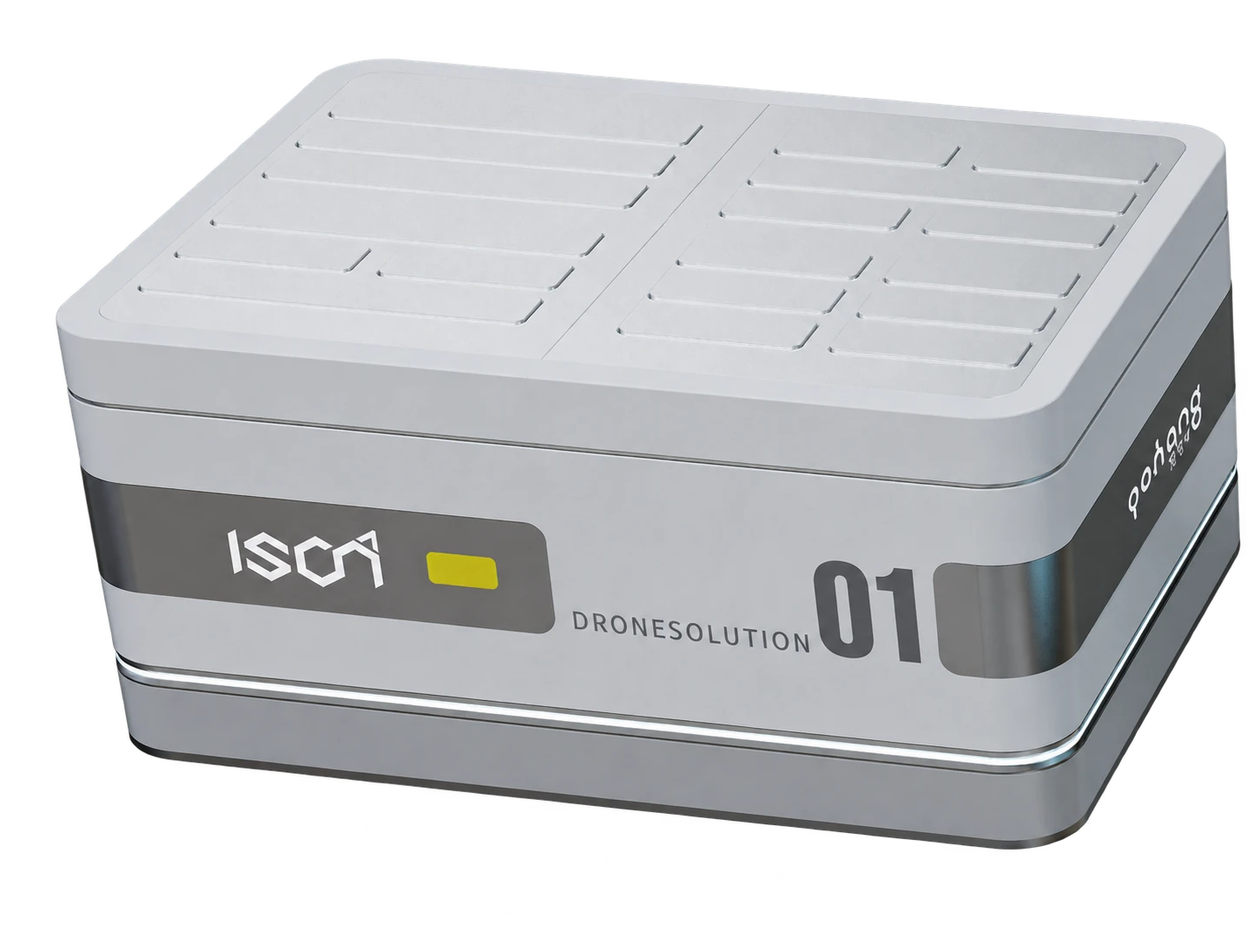
Illustrative deployment preview. Your camera, licence, mounting, power and connectivity are reviewed together. Vehicle and drone operations are scoped while parked.
Choose your package, camera and features.
Choose the configuration, then request a quote.
Save a configuration brief, or continue to the enquiry with your selections.
A COMPLETE OBSERVATION WORKFLOW
Keep the image, model configuration and human decision together so the result remains understandable after the event.
Review the feed, field of view, target class, zone and relevant thresholds.
Source · Scene · ConfigurationReview the event label, count or alert against the original camera frame.
Frame · Timestamp · DetectionCheck the evidence and record the operator’s decision with its context.
Threshold · Model/version · ReviewerKeep dated snapshots, feature galleries and detection history in the reporting workflow.
Evidence · History · ReportTRAIN AI / ORGANISATION-SPECIFIC DATA
Prepare representative data and a consistent labelling process before a model enters the operation.
The product workflow covers dataset preparation, training and validation. The website does not train models or contain customer datasets, model weights or measured accuracy results.
Include Train AI in my configuration ↗Collect a representative camera frame and retain its source.
Mark the intended object consistently with the approved class.
Review dataset progress, source, reviewer and quality checks.
Start training after the dataset and approval gates pass.
Test separate scenes; record accuracy, misses and false positives.
REPORTS / RESOURCES / HANDOVER
Use the product handbook for documented behaviour, the structured catalogue for feature scope and the Experience Zone for a downloadable sample operation.
Review the original camera controls, drone AI and Train AI workflow.
Open handbookJSON / PRODUCT CATALOGUEDownload detection scope, evidence fields and the five training stages.
Download feature catalogueEXPERIENCE / SAMPLE REPORTSRun your selected camera operation, review the sample evidence and export the project PDF or JSON.
Open reports in ExperiencePART OF A CONNECTED HELLOGEO WORKFLOW
AI Vision handles camera detection and evidence review. Add the products your project needs and keep each role explicit.
Yes. Configure an independent fixed-site camera or request the software scope for a compatible existing feed. Choose the vehicle option only when your deployment needs it.
The Experience Zone runs a synthetic camera observation and evidence-review sequence. It does not connect a live camera, perform AI inference or control real equipment. The product screens on this page are original captured interface states.
Share the camera model, feed access, resolution, field of view, network, requested features and camera count in your enquiry. Compatibility, licences, capacity, mounting and measured acceptance criteria are reviewed for the project; no universal accuracy or latency figure is claimed here.
Yes. Select the AI Vision + Drone Station package. Both products carry into the enquiry; aircraft, controller, station, site and commissioning requirements are confirmed separately.
LET’S CONNECT THE RIGHT VIEWPOINT